
Tanzania Prisons Service Recruitment Management System
Mfumo wa Maombi ya Ajira Jeshi la Magereza Tanzania
Tanzania Prisons Service Recruitment Management System
Mfumo wa Ajira wa Magereza (Tanzania Prisons Service Recruitment Management System (TPSRMS).
Mfumo wa Maombi ya Ajira Jeshi la Magereza Tanzania
Miongozo ya Maombi ya Ajira Jeshi la Magereza.
AJIRA MPYA KUTOKA JESHI LA MAGEREZA
INTRODUCTION
Purpose of the User Manual
This User Manual is intended to provide clear and comprehensive guidance to
applicants using the Tanzania Prisons Service Recruitment Management System
(TPSRMS). It serves as an instructional document to assist users in accessing,
navigating, and efficiently using the portal throughout the recruitment process.
The manual acts as a step-by-step walkthrough of the system, aiming to help users understand the interface and make full use of the available features. Each section includes detailed explanations accompanied by screenshots and examples to ensure ease of understanding and successful system interaction.
ABOUT THE SYSTEM
The Tanzania Prisons Service Recruitment Management System (TPSRMS) is a web-based application developed to streamline and digitize the recruitment process for the Tanzania Prisons Service. This system is accessible through any device — including desktop computers, laptops, tablets, and mobile phones — as long as it has an active internet connection. It enables job seekers to:
- Register and verify their identity using national databases.
- Submit academic and professional qualifications.
- Apply for advertised job positions.
- Monitor application status and receive updates.
TPSRMS is designed with a focus on transparency, security, and efficiency to ensure that all qualified candidates have equal opportunity to apply and be considered for recruitment.
1.Registration
Step 1: NIDA and Form IV Index Number Verification
New candidates must Signup
- Signup
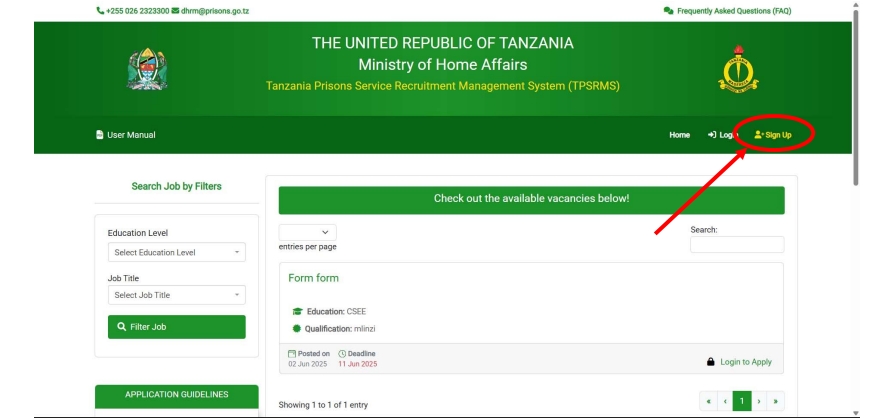 and verify their identity using:
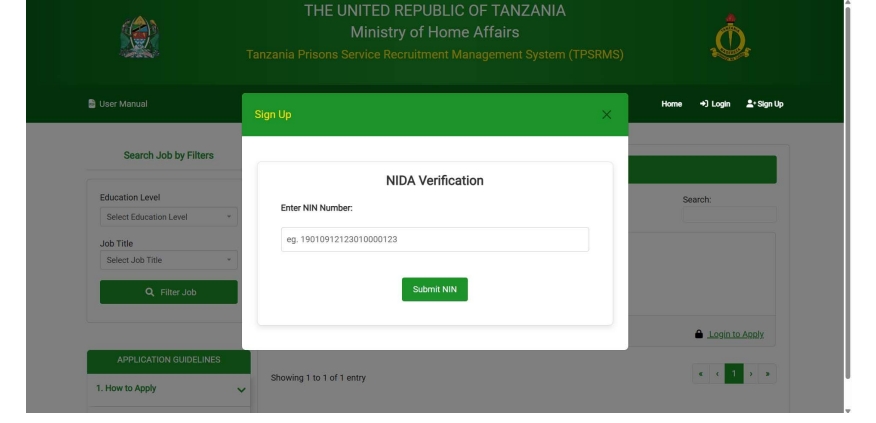
NIDA Number: Candidates will be asked verification questions based on NIDA
data.
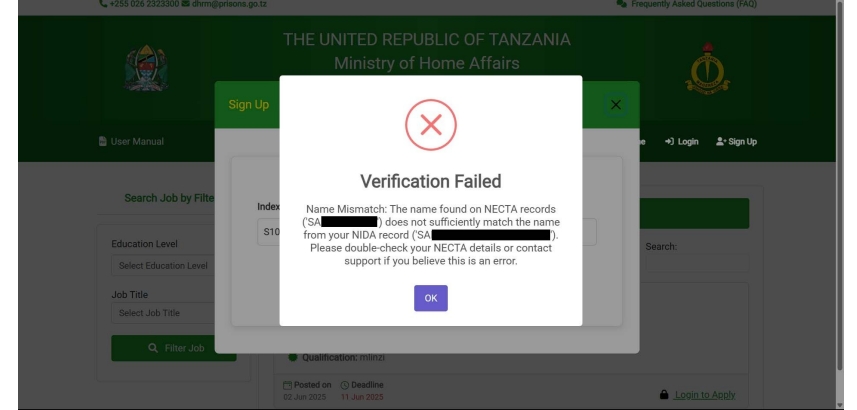
 Form IV Index Number: The system cross-checks names from NIDA and
NECTA (Form IV certificate).
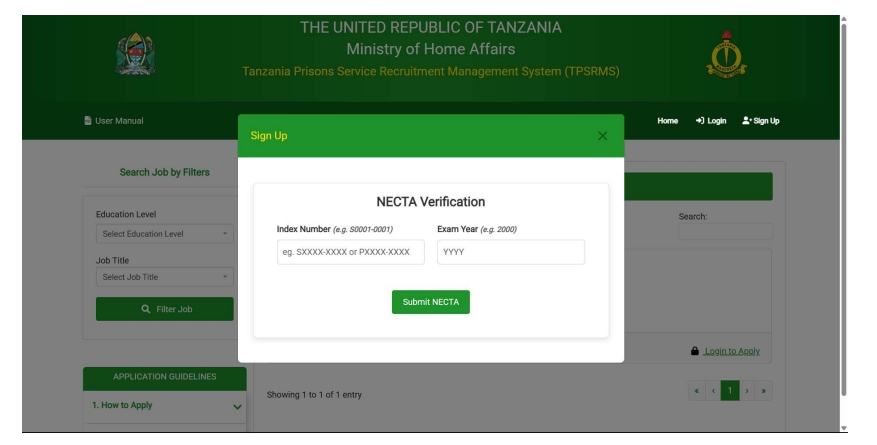 If the names mismatch, the candidate can’t proceeds to the next step
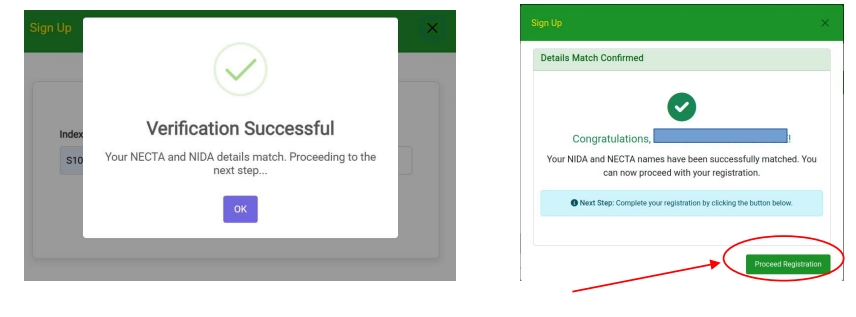
 If the names match, the candidate proceeds to the next step.
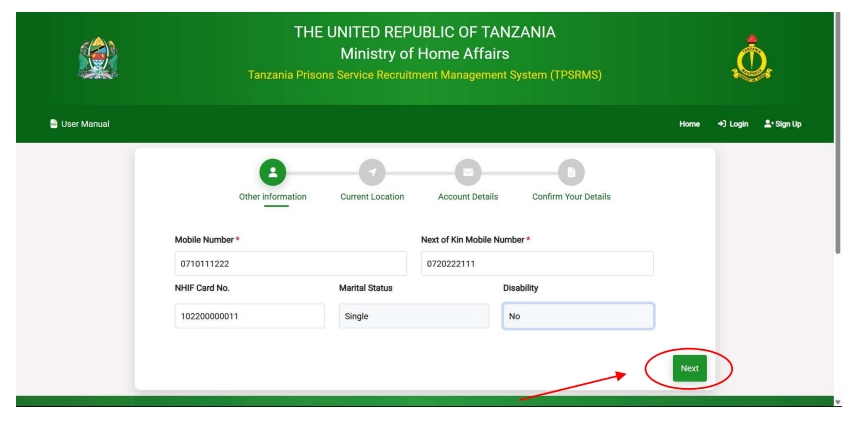
 Step 2: Personal Information Form
Candidates must fill in the following:
- Mobile Number.
- Next of Kin Mobile Number.
- Marital Status.
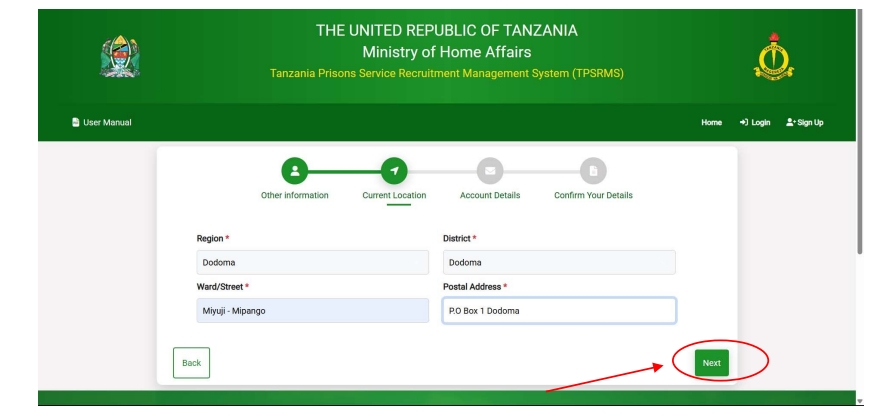
 Residence Details
- Valid Email Address (a verification link will be sent.
- Create a Strong Password
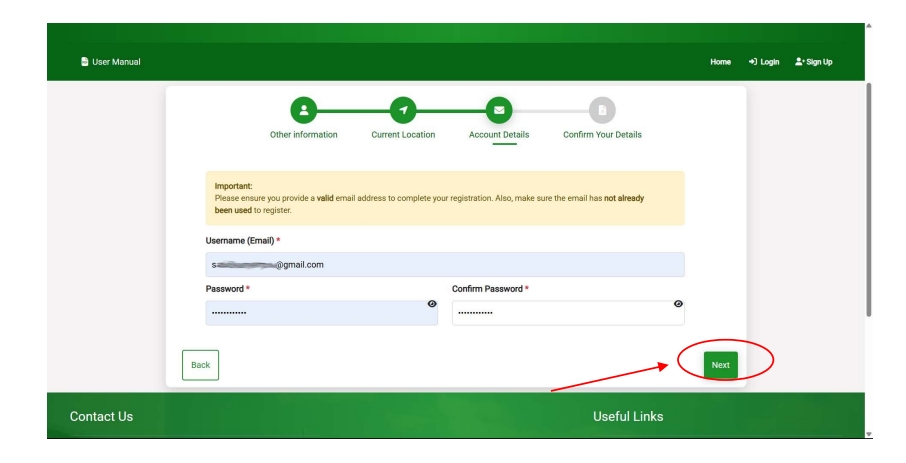
- After confirm details and submit
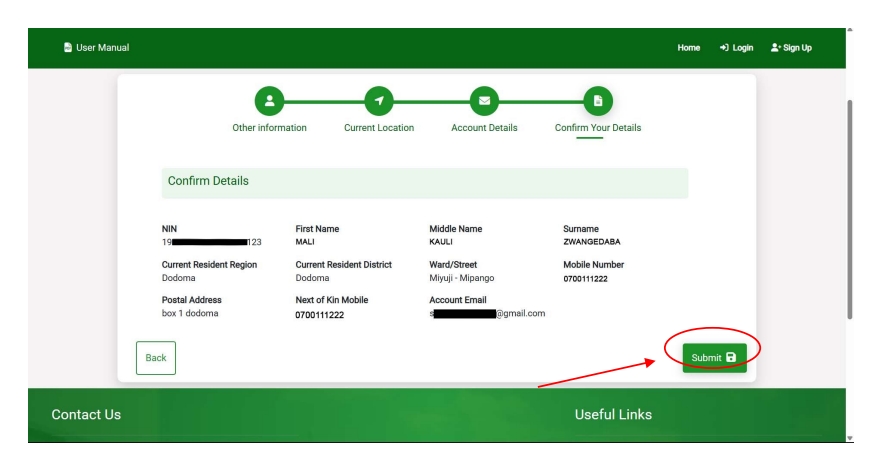
- After submission, the account will be created.
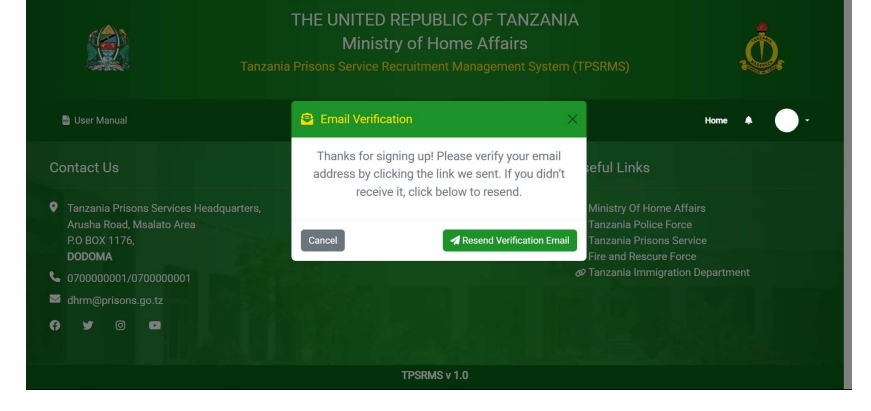 2.Verify Account via Email
Step 1: Check inbox or spam f older for an email from AJIRA MAGEREZA.
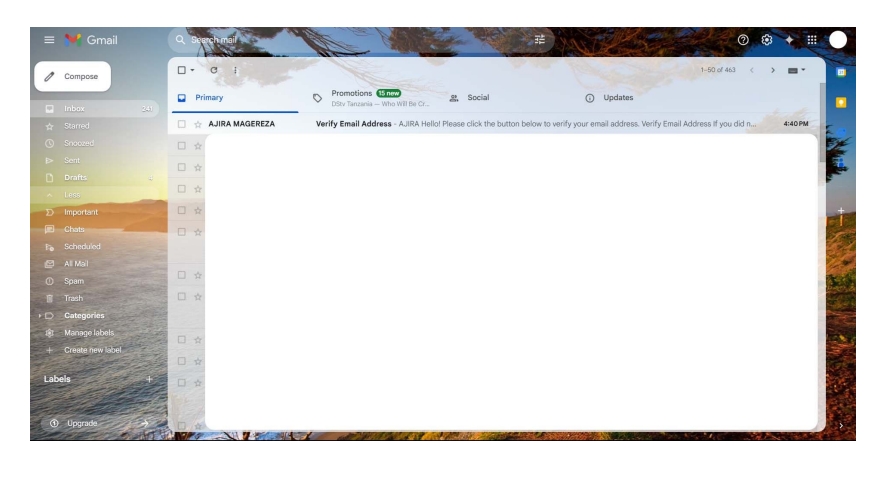 Step 2: Click the verification link provided in the email
 Step 3: After successful verification, the candidate will be login automatic and click My Dashboard to access candidate Dashboard or can log in manual through login page.
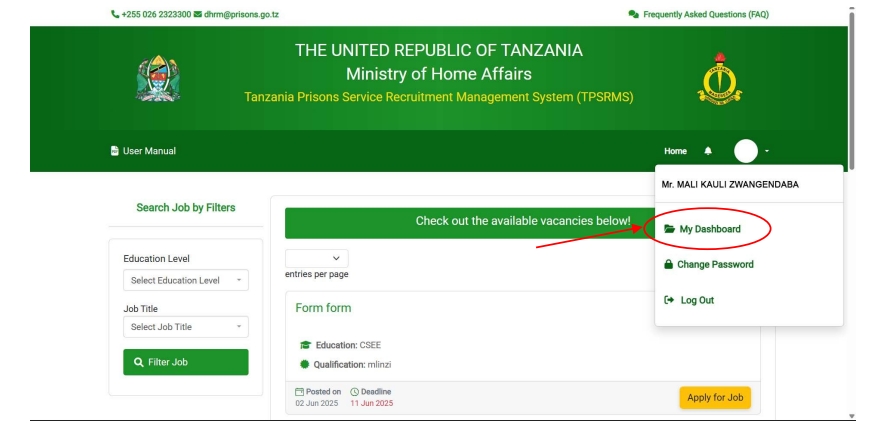 3.Change Email Address (If Incorrect Email Was Used During Registration)
Step 1: Enter the NIDA Number used for registration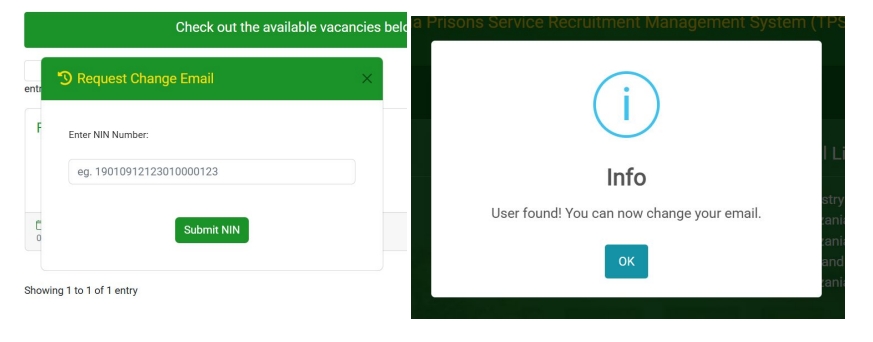
Step 2: Enter a new valid email address. A new verification link will be sent.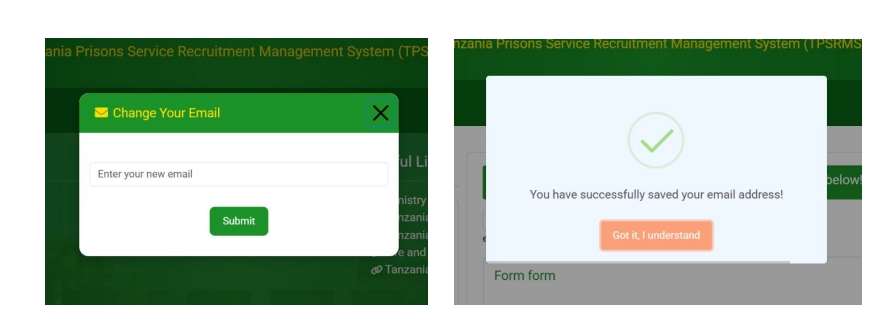
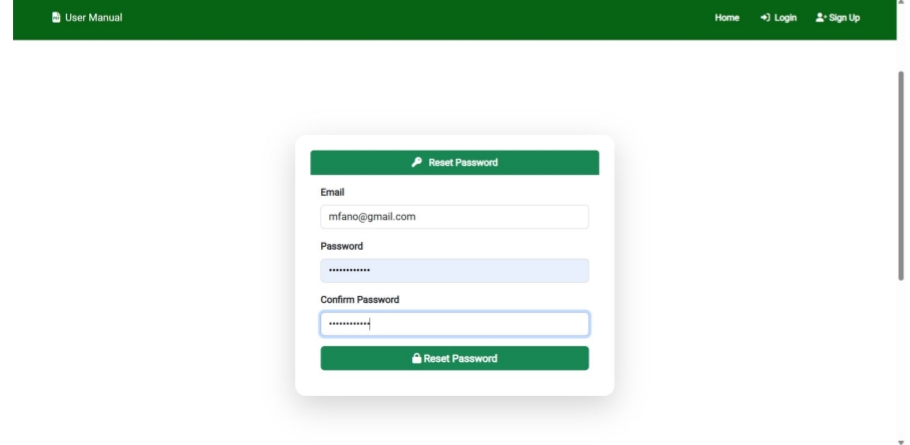
4.Forgot Password
Step 1: Enter the registered email to receive a password reset link.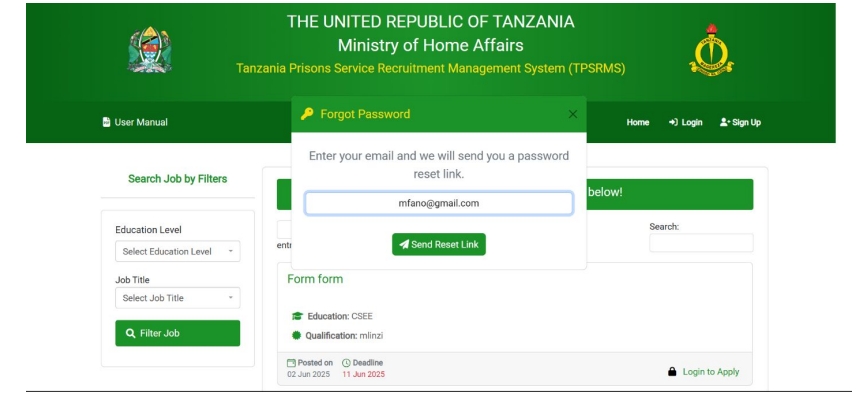
Step 2: Click the link in your email and create a new strong password.
 5. Login
To access the portal:
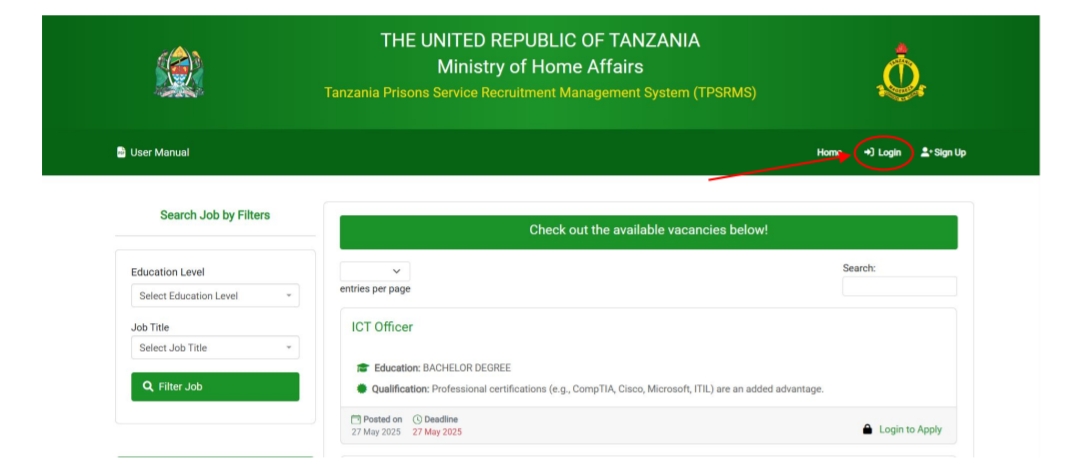
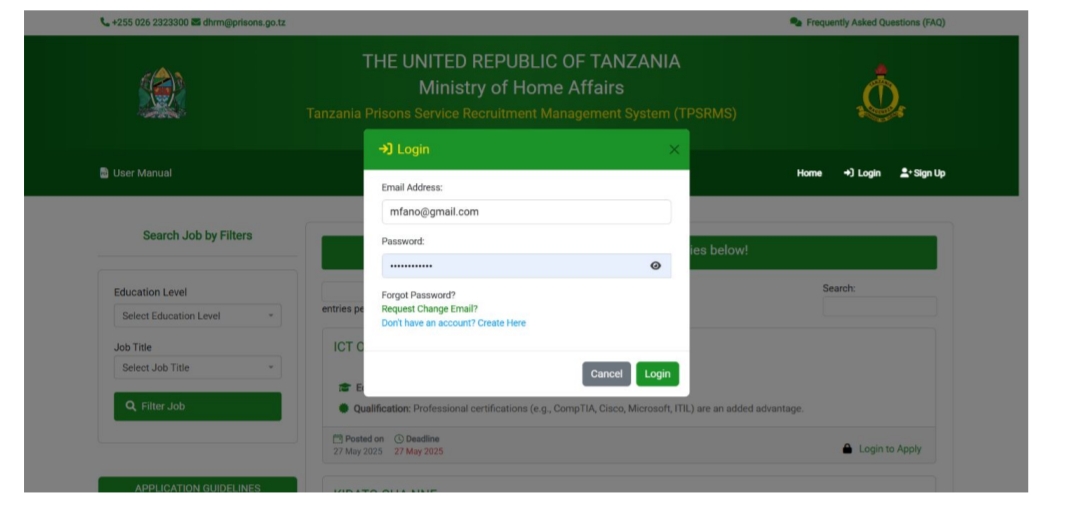
- Enter your Email Address (used during registration).
- Enter your Password
 6.Candidate Dashboard
After logging in, the candidate will be redirected to their Dashboard.
- The Dashboard displays the candidate’s profile, academic qualifications, and application status.
- It is also the main entry point for adding qualifications or applying for jobs.
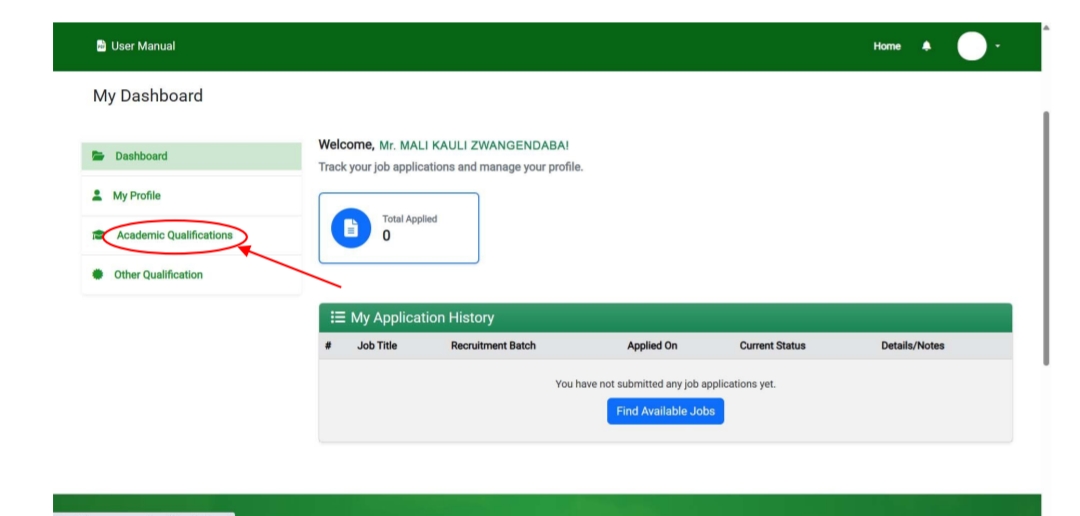 7. Add Academic Qualification
(i)Form IV Qualification
- Every candidate already has a Form IV qualification verified during
registration. - This qualification is automatically added and visible on the dashboard.
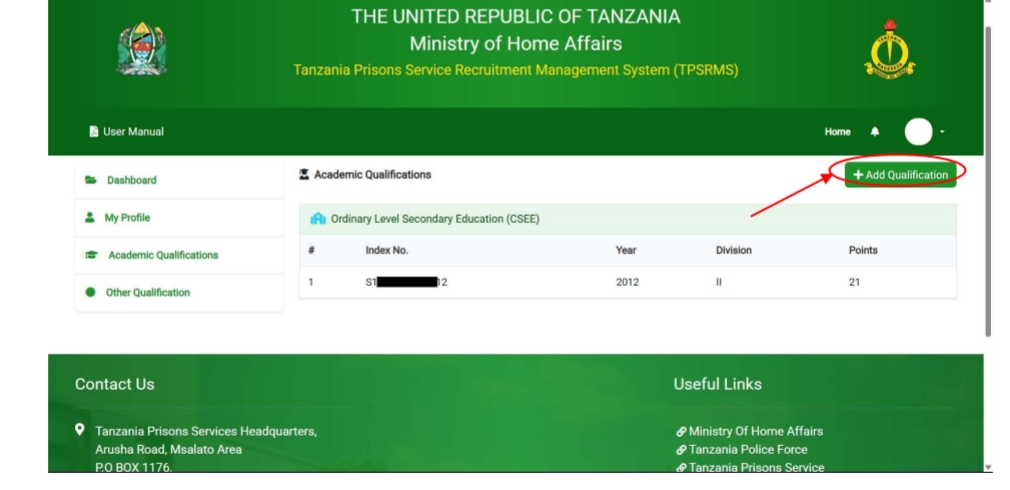 (ii) Add Other Academic Qualifications
Candidates can add additional qualifications such as:
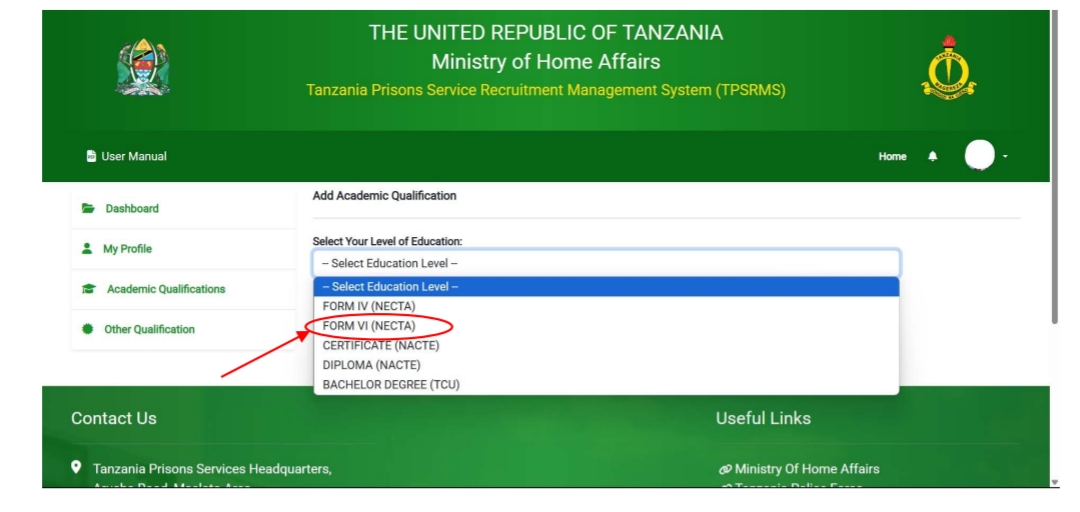
- Form VI
- Certificate
- Diploma
- Bachelor Degree
→ Form VI Qualification
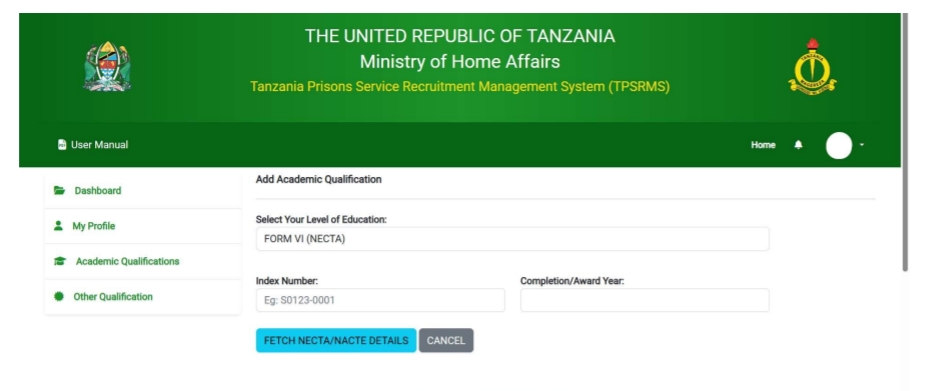
- Enter Form VI Index Number and Awarded Year
Example Format:
- Index Number: S1000-0001 or P1000-0001.
- Awarded Year: 2000
 The system will fetch the results from NECTA.
 Click Save to store the qualification.
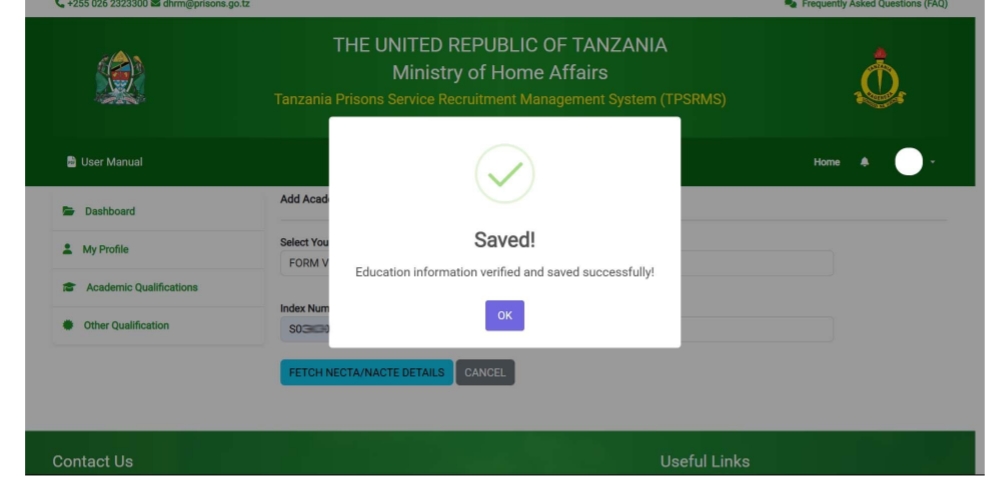 Note: If the names do not match with the ones on your NIDA record, the
qualification will not be accepted.
→Certificate / Diploma / Bachelor Degree
- Select your education level.
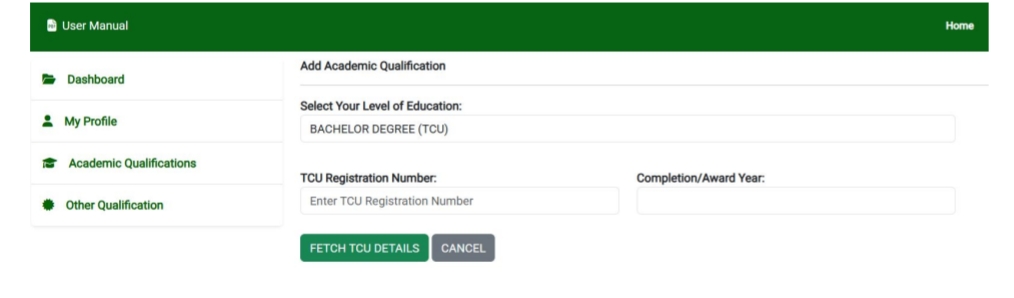
- Enter Registration Number and Awarded Year.
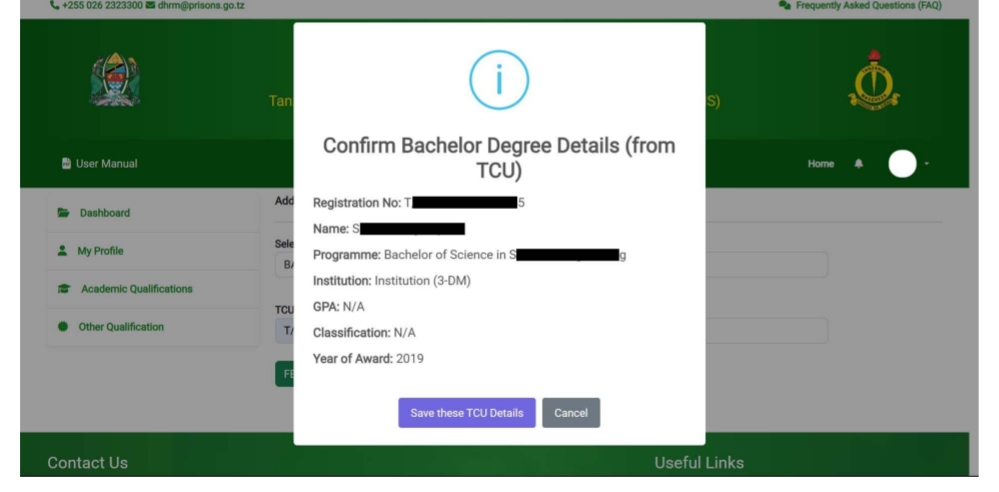
The system fetches data from:
- NACTVET for Certificate/Diploma
- TCU for Bachelor Degrees
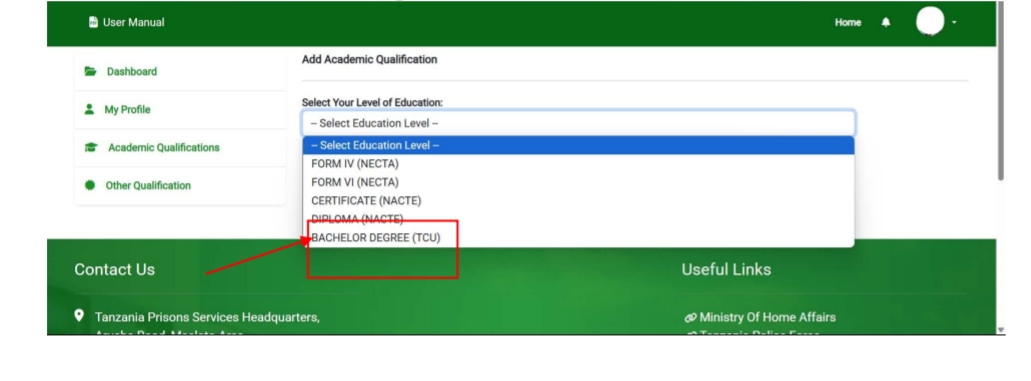 Example for Bachelor Degree (TCU)
 Click Save these TCU Details to store the qualification.
 Note:
Note:
- High-level education will only be saved if the program is listed in the
current job list. - If the names do not match with the ones on your NIDA record, the
qualification will not be accepted. - Qualification will be stored.
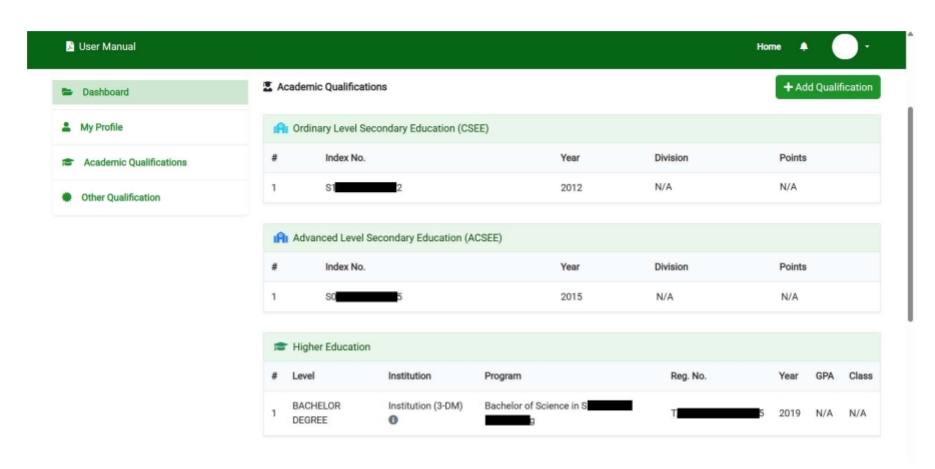 8.Add Other Qualifications (Optional)
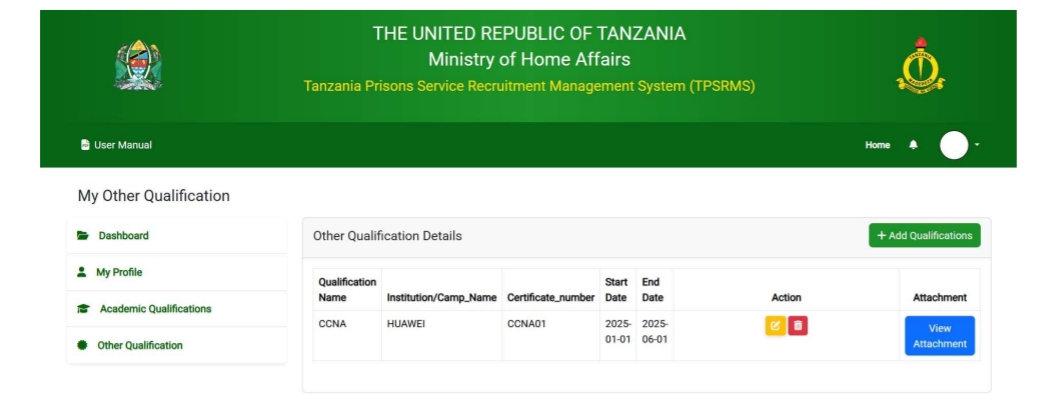
- Candidates can optionally add Other Qualifications such as short courses, training, etc.
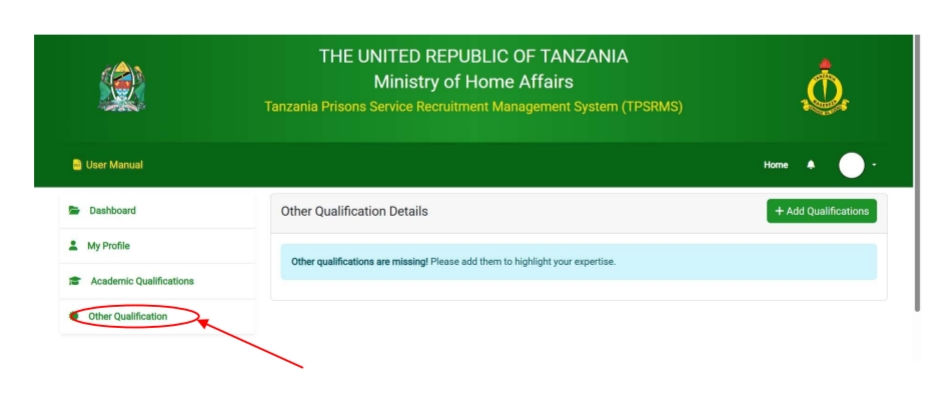 Fill in the required details.
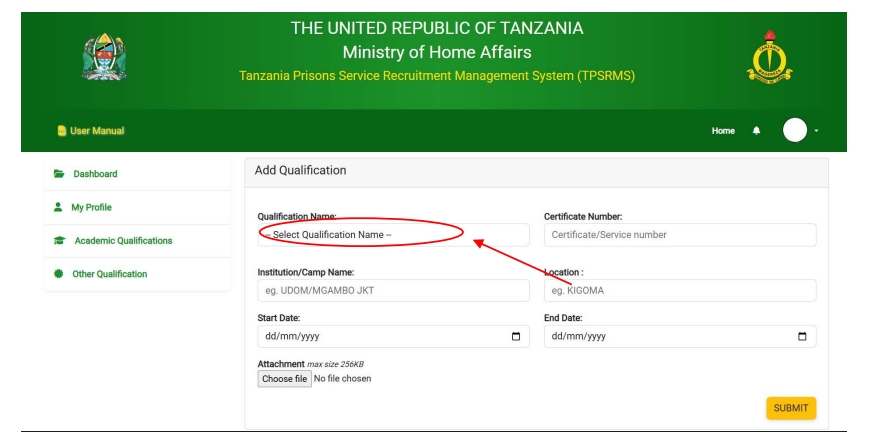 Click Save to add the qualification.
 9.View Available Jobs
- Navigate to the Dashboard.
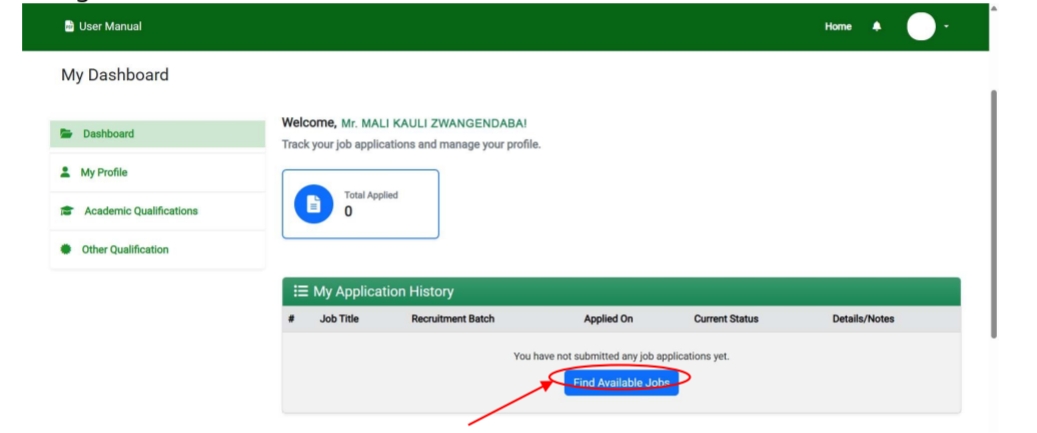
- Click the blue “Apply for a Job” button.
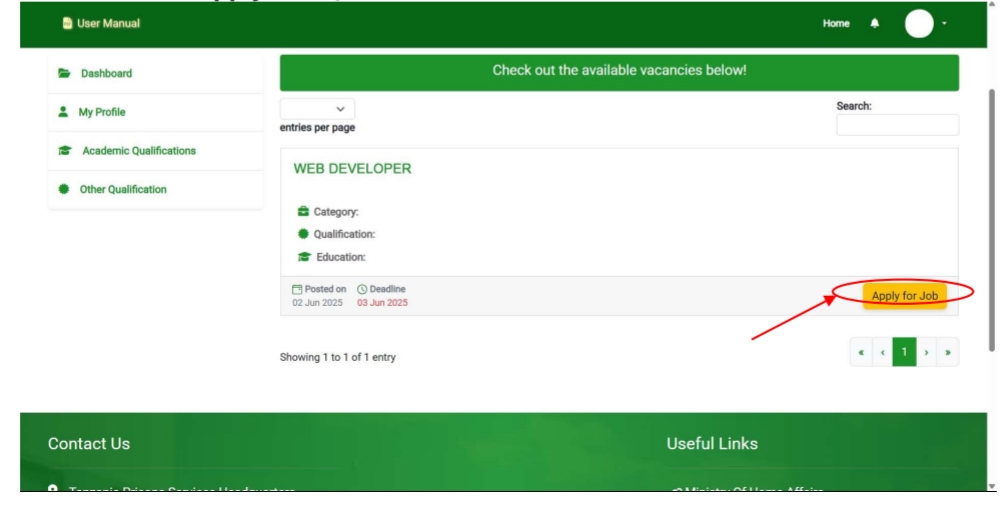
The system will display jobs based on your academic qualifications:
- Form IV Jobs
- Certificate Jobs
- Diploma Jobs
- Bachelor Degree Jobs
Note: Jobs outside your qualification level will not be shown.
10. Apply for a Job
Step 1: Upload Application Letter
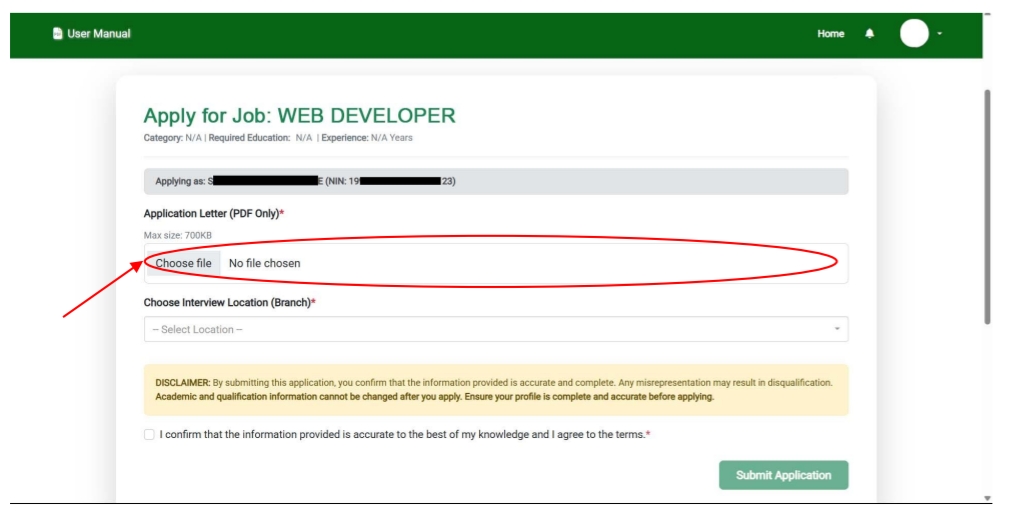 Must be in PDF format.
- File size must be 700KB or less.
Step 2: Select Interview Location
- Choose any available location regardless of your residence or birth location.
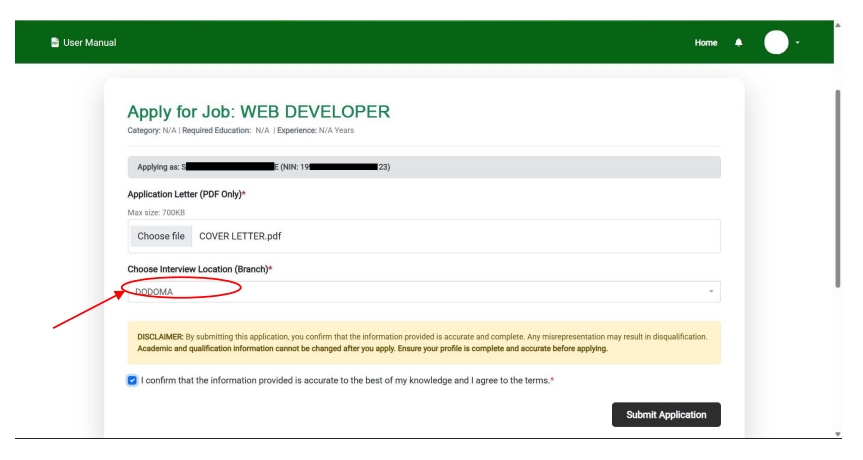 Step 3: Accept Disclaimer
- Read the terms and conditions carefully.
- Click Agree to proceed.
Step 4: Submit Application
- Click the Submit Application button.
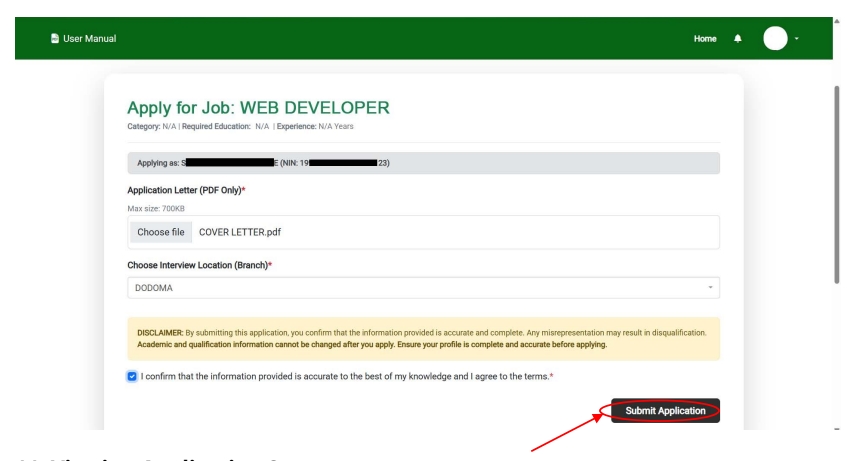 11.Viewing Application Status
- Once a candidate has submitted a job application, they can view the
Application status through their dashboard. Candidate will see a list of jobs you’ve applied for.
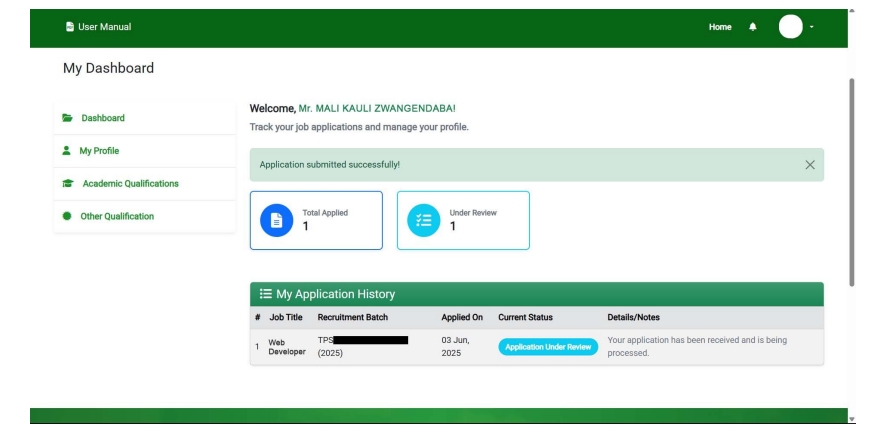 Follow Up
- If you are invited for interview or selected, the status will indicate the next steps.
- In some cases, you may receive an email or notification through your
account as well.
BOFYA HAPA KUJISAJILI NA KUTUMA MAOMBI
Tags: Tanzania Prisons Service Recruitment Management System























Find Job application
AJIRA MAGEREZA
AJIRA
WANT TO APPLY
Maombi ya magereza
I wish to do or to have this job from my heart
REQUEST FOR JOINING TANZANIA PRISONS SERVICE RECRUITMENT MANAGEMENT SYSTEM
REQUEST FOR JOINING TANZANIA PRISONS SERVICE RECRUITMENT MANAGEMENT SYSEM
Ajira